A background video behind your headline, a video beside your copy with chapters, captions and a transcript, and a whole library as a grid, a slider or a playlist. Play YouTube, Vimeo, Wistia, HubSpot video or your own MP4, in place or in a lightbox, and tell Google what each video is.
A ten-second loop plays without sound behind the text, with a light wash so the words stay readable. Phones get their own upright file, and visitors who ask for reduced motion or save data see the still poster. The button in the corner pauses it. Watch the full video opens the long version, with sound, in a lightbox.
JobHero
SourceMP4 file, separate phone file
Full videoYouTube in the lightbox
Studio Nope Official
One HubSpot theme for whatever your business does
Set it up for a clinic, a law firm or a software company with the same templates and modules.
This is the module as it arrives. The text sits on the left, the video plays in place, and under it the transcript opens and follows along. The chapters jump through the video, the English captions come from a caption file, and Google gets the title, poster, length and chapters as structured data.
JobSection
SourceMP4 file with captions
OpensIn place
TextLeft
Product tour
See how it works in under a minute
Press play for a short overview. Captions, chapters and a transcript sit with the video.
Captions in English
TranscriptRead along
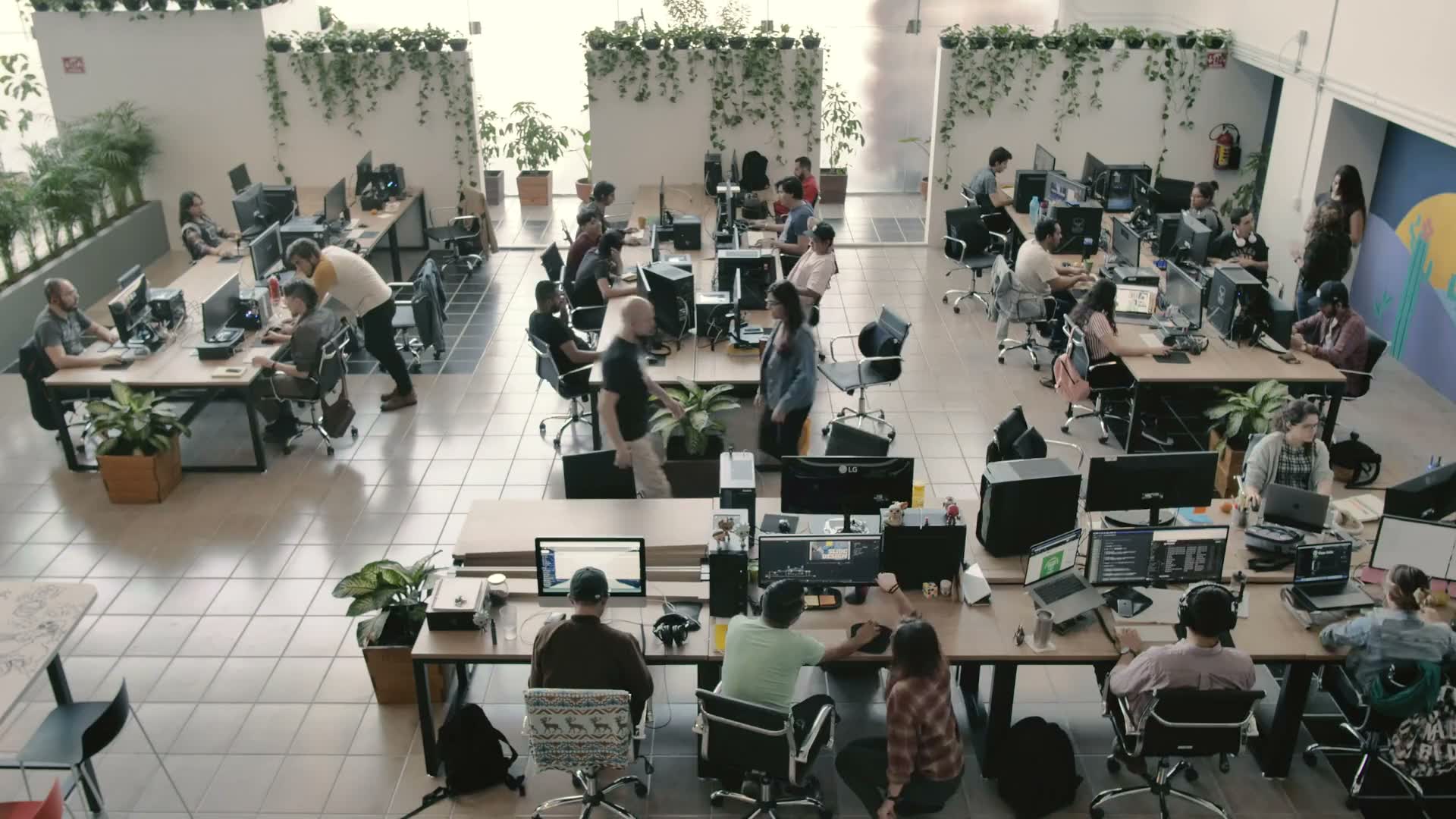
A bright open-plan office, seen from above.
People work at long shared desks below.
The view drifts slowly across the floor.
Demo 3 · Section
Text on the right, video in a lightbox
A YouTube video that loads nothing from YouTube until someone presses play: the cover is YouTube's own thumbnail, and the player opens in a lightbox from the privacy-enhanced domain. The lightbox lists the chapters beside the video and has a share menu.
JobSection
SourceYouTube
OpensLightbox
TextRight
Theme walkthrough
A wealth management site, page by page
The homepage, a retirement calculator that shows a client what their savings could become, and a fee calculator that answers the question before the first meeting.
Demo 4 · Section
Text above, a silent loop where a GIF would go
An upright phone clip that plays on its own, without sound, once it scrolls into view and pauses when it leaves. It is sharper than a GIF at a fraction of the size, and the sound button turns the audio on for anyone who wants it.
JobSection
SourceMP4 file, 9:16
OpensSilent loop
TextAbove
On a phone
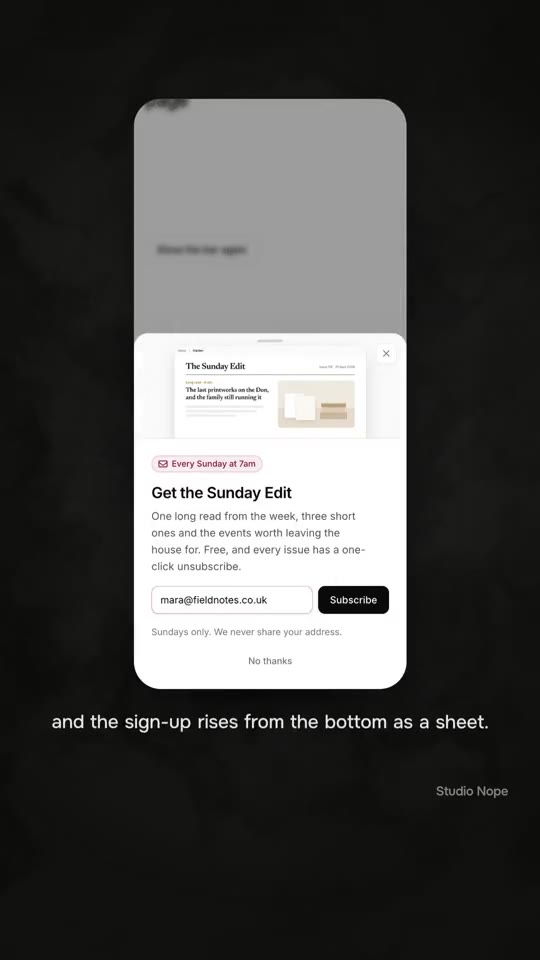
A sign-up that rises from the bottom of the screen
On a phone the newsletter popup becomes a sheet the reader can drag away. The clip loops without sound until you ask for it.
Demo 5 · Section
Text below, and an end screen
The same bundled tour with the text underneath and a corner play button. Let it run to the end and the frame offers a button to the next page and a replay. Structured data is switched off on this one, so the page does not describe the same video twice.
JobSection
SourceMP4 file
OpensIn place
TextBelow
End screen
When the video ends, offer the next step
The last frame turns into a heading, a button and a replay, so the viewer has somewhere to go.
Our own product videos as a grid. The tabs come from each video's category and show a count, the topic list from its tags, and the search looks through titles and descriptions as you type. Sort by date, title or length. The first video is featured and takes two columns. One video asks for an email before it plays, and that one form opens every locked video in the library. The live session at the end shows its date, a Register button and calendar links until it starts.
JobLibrary
DisplayGrid
SourceYouTube
OpensLightbox
Video library
Every theme and module, at work
Short walkthroughs of each product, plus tutorials for building and changing a HubSpot site.
No videos matchTry another word or clear the search.
6 of 10
Demo 7 · Library
The same library as a slider
Three videos at a time on a computer, two on a tablet and one and a bit on a phone, with arrows, dots and swiping. Hover the Harrington & Co card to see a silent preview. The upright short sits in the row with the others and opens upright in the lightbox.
JobLibrary
DisplaySlider
SourceYouTube and MP4
OpensLightbox
Watch next
Start with a theme tour
1:36
Themes
1:56New
Themes
0:30
Modules
1:47New
Themes
2:01
Themes
1:39
Modules
No videos matchTry another word or clear the search.
Demo 8 · Library
A course as a playlist
One player with the lessons listed beside it. When a lesson ends, the next one starts. The first lesson is a self-hosted MP4 with captions and a transcript, and the rest are on YouTube. On a phone the list becomes a dropdown above the player.
JobLibrary
DisplayPlaylist
SourceMP4 file and YouTube
OpensIn place
Course
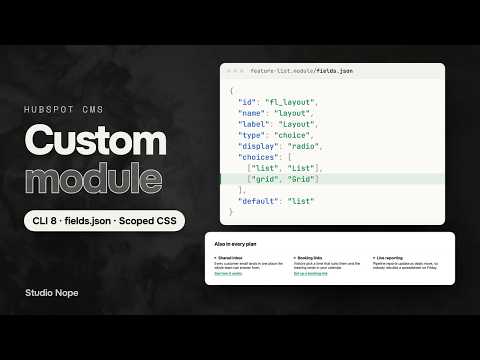
Build on HubSpot in four short lessons
A popup module, start to finish
Lesson 1 · 1:16
A bright open-plan office, seen from above.
People work at long shared desks below.
The view drifts slowly across the floor.
Documentation
A video module for HubSpot CMS. Each instance does one of three jobs: a Section (one video with
a cover, a play button and text beside it), a Hero (a silent looping video behind a headline),
or a Library (a grid, slider or playlist of videos with category tabs, search and a lightbox).
Every job plays YouTube, Vimeo, Wistia, Vidyard and Loom links, HubSpot videos, uploaded MP4 or WebM
files and any .mp4 address, and every video it plays can be described to Google with its title,
cover, length, chapters and transcript.
Everything runs in the visitor's browser. There is no HubDB table, no workflow and no outside
service. Nothing from a video host loads until a visitor presses play, unless you choose otherwise.
In the page editor's module list it is called Video Pro.
Buy the module. It appears in your portal under Marketing → Files and Templates → Design Tools.
Open the page you want it on in the page editor.
Drag Video Pro into a drag-and-drop area. A hero belongs in a full-width section at the top
of the page; a section or a library goes wherever the content sits.
Open Setup first and pick What this block does. Every other group follows that choice.
The module is offered on site pages, landing pages, blog posts and blog listings.
Dropped in and published with no edits, it shows a Section: a cover image of a product tour, a
pill-shaped play button reading Watch the tour with the running time, and beside it the eyebrow
Product tour, the heading See the whole workflow in two minutes, two lines of text and a black
Watch the tour button. Pressing play plays the bundled MP4 in place, with English captions, three
chapters and a folded transcript under it. The page source carries a complete VideoObject for
Google. Nothing on it needs a value to look finished. Replace the video, the cover and the words,
and it is yours.
It draws its own styling and does not read a host theme's CSS variables. Three fields reach into the
theme through HubSpot's field inheritance: Style → Typography → Heading font and Text font
take the theme's heading and body fonts, and Style → Colours → Accent takes the theme's primary
colour. On a theme that publishes those settings, the block lands in your palette before you touch
anything. On a theme that does not, it is neutral grey and white with a blue accent.
From nothing to a working video
Job.Setup → What this block does: Section, Hero or Library. Pick it first; the
rest of the editor changes with it.
Anchor.Setup → Anchor: a short name such as product-tour. It becomes the block's
#anchor, and share links and stored progress are kept under it. Give every Video Pro block on
the site its own.
The video. For a Section or a Hero, open Video → Video from and pick the source, then
paste the link or pick the file. For a Library, open Videos and fill one row per video. See
Getting the video link.
Cover image.Video → Cover image (or each row's Cover image). YouTube supplies its
own when this is empty. Every other source needs one.
What Google reads.Video title, Description, Upload date and Length. Without a
title and a cover, the video is not described to Google, and the editor says so.
Text and buttons.Text for the eyebrow, heading and copy, Buttons for up to three
buttons, Form for a HubSpot form beside or under the text.
How it plays. Section: Section → How it plays. Library: Library → Layout and
Videos open. Hero: Hero → On phones.
Loading.Playback → Loading. Leave it on Cover first unless the page exists for this
one video. See Fast or found.
Style. Set Style → Colours → Accent first, then the group named after your job
(Section layout, Hero or Cards), then work down.
Buttons takes up to three rows and opens with one. Videos takes up to 60 rows and opens
with six. Chapters takes up to 20 rows per video, Captions up to three, Files up to
three.
How it works
Read this once and the rest of the module stops being surprising.
Three jobs, one block each
Job
What it is
What the visitor does
Section
One video in a frame with its cover and a play button, and optional text, buttons and a form beside it, above it or below it.
Presses play. The video plays in place, opens in the lightbox, or runs as a silent loop.
Hero
A muted looping video filling the block, with an overlay and your heading, text, buttons and form on top.
Reads. A pause button sits in a corner. An optional Full video button opens a second video, with sound, in the lightbox.
Library
Cards for many videos, as a grid, a slider, or a player with a list beside it. Category tabs, a topic filter, search and sort on top.
Filters, searches and opens a video in the lightbox with chapters, transcript, files, previous and next.
One block does one job. For a hero and a library on the same page, drop the module twice.
The lightbox
The lightbox is the module's popup. A Section set to In a lightbox, a Hero's Full video
button, and every Library card (unless Videos open is In the card) open it.
It is a native HTML <dialog> opened with showModal(). It sits in the browser's top layer, above
every z-index on the page, so a sticky header or an overflow: hidden wrapper cannot cover or clip
it. The page behind is dimmed, blurred and locked.
Inside it, top to bottom:
The player, in the video's own shape, never taller than the screen. A 9:16 video sits centred
at its natural width.
Title and details (Lightbox → Title and details): the title, length, date and description.
Previous and Next with a counter such as 3 of 12 (Library only, Lightbox →
Previous and next). They follow the list as it is filtered, searched and sorted at that
moment. The left and right arrow keys do the same.
A panel with tabs for Chapters, Transcript and Files, each only when the video has
something in it (Lightbox → Chapters, transcript and files).
Share links (Lightbox → Share links).
Esc and the close button always close it. A click on the dimmed page closes it while Close on a
click outside is on. Closing removes the player, so the sound stops and nothing keeps loading.
Focus goes back to the card or button that opened it.
Only one lightbox is open on a page at a time, and only one video plays sound at a time: starting
one pauses any other Video Pro video on the page.
Cover first
Until a visitor presses play, a host video (YouTube, Vimeo, Wistia, Vidyard, Loom) is an <img>
with your cover and a <button>. No player, no script and no cookie from the host reaches the
page. The press builds the player and starts it. This is what keeps a page with ten videos as fast
as a page with none.
An uploaded file is a <video preload="none"> element in the page from the start. The browser
downloads nothing until play.
A HubSpot video is held in a <template> and added to the page on play.
With Playback → Loading set to Player in the page, a Section that plays in place shows the
host's own player instead. See Fast or found.
The space is reserved
Each video's Shape sets the frame's proportions before anything loads, so the page never jumps
when the cover or the player arrives. Pick the shape the video was filmed in. A youtube.com/shorts
link left at 16:9 is switched to 9:16.
Section: how it plays
Section → How it plays:
In place. The cover and play button sit in the frame. A press swaps in the player at the
same size.
In a lightbox. A press opens the lightbox.
Silent loop, like a GIF. The video plays muted, looping and without controls, from the
moment it scrolls into view, with a small pause button. Sound button on the loop adds a
button to turn the sound on. This works with uploaded files and .mp4 links only. Any other
source plays in place, and the editor says so.
Section → Text position puts the text right, left, above or below the video. Below Style →
Section layout → Stack below (900px), the two stack: the video comes after the text, except with
Below the video, where it stays below. Section → Show the text off leaves the video on its own.
End screen (Section → End screen, In place only): when the video ends, the frame shows your
heading, a button to a link or the form from the Form group, and Replay.
Hero: the background video
The hero's video is decoration. It is always muted, it loops, it has no controls, and it is never
described to Google. The cover image is the first thing on screen and stays under the video, so
the hero looks finished before a single frame plays.
It plays when all of these hold, and otherwise the visitor sees the cover:
The page has finished loading. The video never competes with the page for bandwidth.
The visitor's device does not ask for reduced motion.
The screen is wider than Style → Spacing → Phone layout below (768px), or Hero → On
phones is Play the phone file (with a Phone video file set) or Play the same video.
Hero → Respect data saver is off, or the visitor has not turned data saver on.
The browser agrees. iPhones in Low Power Mode refuse to start any video by itself. The cover
stays and the pause button changes to Play.
It pauses when the hero scrolls out of view or the tab goes to the background, and resumes on
return. A visitor who presses the pause button keeps it paused for the rest of their visit.
Sources for the background: an uploaded MP4 or WebM, an .mp4 link, or a YouTube or Vimeo
link. A file is the right choice: keep it under 6 MB, 10 to 20 seconds, with no sound track. A
YouTube or Vimeo background loads the host's player on every visit and is slower to start. A
HubSpot video, a Wistia, Vidyard or Loom link, or embed code shows the cover only as a background.
Full video.Hero → Full video button adds a play button after your buttons. It opens the
video set under Hero → Full video in the lightbox, with sound. That second video is the one
described to Google. A button in Buttons set to Play this block's video does the same.
Library: grid, slider, playlist
Library → Layout:
Grid. Columns from Style → Cards (3, 2 on tablets, 1 on phones). A video marked
Featured sorts first and, with Wide featured cards on, takes a card twice the width.
Videos before Show more shows that many and a Show more videos button for the next batch.
The number is rounded up so the last row is full. Filters and search look through every video,
shown or not.
Slider. A row of cards that scrolls sideways, by touch, drag, arrows or dots. The fraction in
Style → Slider → Cards in view on phones (1.15) lets the next card peek in. Autoplay
moves it on every few seconds, pauses on hover and focus, and has a pause button.
Playlist. A player with the list beside it. A row press loads that video in the player.
Play the next video when one ends moves down the list. Below Style → Playlist → Stack
below, the list becomes a dropdown or rows under the player (List on phones).
A row in Videos can also be an Image, with an optional link. It sits in the grid as a card
and opens in the lightbox as a picture.
Cards show the cover, a length badge, the category, the title and, when switched on in
Library, the description, date and person. A card a visitor started and left shows a progress
bar and Resume at 0:38, and the video picks up there. A video with an Upload date inside the
last New badge for days (30) carries a New badge.
Filters, search, sort
Control
Field
What it does
Category tabs
Library → Category filter, Filter look
One tab per distinct Category in the rows, in the order they first appear, after All. As segmented tabs, pills or a dropdown. Counts in the filter adds the number of videos to each.
Topic filter
Library → Topic filter
A dropdown built from every row's Tags (comma-separated).
Search
Library → Search
Matches the title, description, category, tags, person name and transcript, as the visitor types. Accents and case are ignored. The number of results is read out to screen readers. Pressing / on the page jumps to the search box.
Sort
Library → Sort menu, Order
Newest, oldest, title A–Z, shortest, or the order of the rows. Order is the starting order whether or not the menu shows.
No match
—
No videos match, a hint and a Clear filters button.
The controls combine: a category, a topic and a search term narrow the list together.
With Keep filters in the address on, the choices are written into the page address under the
block's anchor, for example ?webinars-cat=Tutorials&webinars-q=pricing. Someone who opens that
link sees the same filtered list.
Categories are typed per row, so Webinars and webinars make two tabs. Type them the same way
every time.
Share links and ?t=
Every library video has its own link: the page address plus ?video=<anchor>.<link name>. Opening
it opens that video in the lightbox. Add &t=90 to start it at 1:30. Copy link in the
lightbox writes this link for you. The link name is the row's Link name, or its title in
lower case with dashes.
A Section honours ?t=90 on its own: the page scrolls to the video, and the next press of play
starts at 1:30. This is what makes the chapter links Google receives open at the right moment.
When the browser blocks playback with sound on a page that has just opened, the lightbox shows the
player with its own play button, and one press starts it.
Gated videos
Switch Needs the form on for a row, and pick Library → Form for gated videos. The card shows
a lock. A press opens the form in the lightbox instead of the player. Once the visitor submits it,
every gated video in that library opens, and stays open in that browser for Remember the form
for days (180). Libraries with the same Gate name unlock together, on any page.
The gate is for collecting leads. The video's address is in the page source, and Google still sees
the video, which is the point: a visitor finds it in search, arrives, and fills in the form.
Live sessions
Give a row a Live session starts time (and Live session ends, Register link, Join
link). The card changes by the visitor's own clock:
Before the start
During
After the end, no video yet
After the end, video set
Upcoming, the date and time in the visitor's time zone, Register, Add to calendar
Live now, Join now
Replay soon
An ordinary video card
Add to calendar offers Google Calendar, Outlook.com, and an .ics file for Apple Calendar and
desktop Outlook. Build the page once; it moves through the states by itself.
In the page editor
The editor shows the block as visitors see it, minus anything that moves by itself. Nothing
autoplays, the hero shows its cover with the note The background video plays on the live page,
the lightbox does not open from a share link, gated videos play, and the address bar is left alone.
Pressing play still plays the video, in place, so you can check it.
With Editor → Show setup hints in the editor on, a note above the block lists what needs
attention. Visitors never see it:
no video picked, or a link the module does not recognise (the link is quoted);
a video with no cover image;
a video that is not sent to Google because it has no title or cover;
a silent loop set on a source that cannot loop;
a chapter time that cannot be read;
a live session that ends before it starts;
the same video link twice in one library.
Several blocks on one page
Each block is independent: its own lightbox, its own filters, its own structured data. They share
two things: one lightbox open at a time and one video playing sound at a time. Give each its own
Anchor.
The same video in two blocks on one page is described to Google twice. Switch SEO → Describe
videos to Google off on one of them.
Opening a video from your own script
The module defines window.videoPro once per page:
videoPro.open('webinars', 'pricing-walkthrough'); // opens that video of the block anchored "webinars"
videoPro.open('product-tour');                     // opens the first video of that block
videoPro.close();                                  // closes the open lightbox
Getting the video link
Video → Video from (and each row's Video from) picks the kind of source. For anything on a
video host, choose Link and paste the address from the browser's address bar or the host's
Share button. The module recognises the host from the address.
Source
Pick
What to paste
Cover image
YouTube
Link
The watch page (youtube.com/watch?v=…), a share link (youtu.be/…), a Short (youtube.com/shorts/…), a live link (youtube.com/live/…) or an embed address (youtube.com/embed/…).
Optional. YouTube's own cover is used when empty.
Vimeo
Link
vimeo.com/123456789, or player.vimeo.com/video/123456789. For an unlisted video, the whole link including the code after the last slash: vimeo.com/123456789/abcdef1234.
Required.
Wistia
Link
The media page (yourname.wistia.com/medias/…) or fast.wistia.net/embed/iframe/….
Required.
Vidyard
Link
share.vidyard.com/watch/… or play.vidyard.com/….
Required.
Loom
Link
loom.com/share/… or loom.com/embed/….
Required.
An MP4 on any server
Link
An address that ends in .mp4, .webm or .m4v.
Required.
HubSpot Video
HubSpot video
Pick the video from your HubSpot library in the field.
Required. HubSpot does not share its video cover with modules.
Uploaded file
Uploaded video file (MP4 or WebM)
Pick an MP4 (H.264) from Files in Video file (MP4). A WebM in Video file (WebM, optional) is served first to browsers that play it.
Required.
Anything else
Embed code
The host's embed code. It is inserted when the visitor presses play, and any script inside it runs then.
Required.
Where the link is on each host:
YouTube: open the video, press Share, copy the youtu.be link. Or copy the address bar.
The video must allow embedding (YouTube Studio → the video → Details → Show more → License → Allow embedding).
Vimeo: press Share on the video and copy the link. For an unlisted video, the link Vimeo
gives you already ends in the code; keep it. The video's privacy settings must allow embedding
on your domain (Vimeo → the video → Settings → Privacy → Where can this be embedded?).
Wistia, Vidyard, Loom: copy the share link from the video's page.
An uploaded file: in HubSpot, Marketing → Files, upload the MP4, then pick it in the field.
An MP4 uploaded to Files is served from HubSpot's file domain and plays like any other file.
Embed code is the last resort. The module cannot read an address out of it, so a video added
as embed code is never described to Google, has no chapters, and reports only start and close
to your analytics. Use it for a host the list above does not cover.
Covers, captions, transcript and chapters
Cover image
Cover image is what visitors see before they press play, what Google shows as the video's
thumbnail, and on a Hero, the first thing on screen.
Pick an image in the video's shape, at least 1600px wide for a Section or Hero and 1080px for a
library card. The module serves smaller copies to smaller screens by itself.
Set its alt text in the image field. Left empty, the video title is used.
Style → Video frame → Cover focus (Top, Centre, Bottom) keeps faces in frame when the cover is
cropped.
A Hero can have a second, portrait cover for phones: Hero → Phone cover (optional).
Privacy: with no cover image, a YouTube video's cover is loaded from YouTube's image server on
page view. That is an image request with no script and no cookie. For a page that should make no
request to Google at all before consent, upload your own cover and leave Playback → Privacy
mode on.
Phones and slow connections (Hero)
Field
What it does
Hero → On phones
Show the cover only (default): phones get the still image. Play the phone file: phones play Phone video file, a smaller portrait MP4. Play the same video: phones play the desktop video.
Hero → Phone cover (optional)
A portrait cover for phones. Empty uses the main cover.
Hero → Respect data saver
Visitors who turned on data saver get the cover only.
"Phone" is any screen narrower than Style → Spacing → Phone layout below (768px).
Captions (.vtt)
Captions work for uploaded files and .mp4 links. YouTube, Vimeo, Wistia and the other hosts show
the captions you add on their own site, in their own player.
Make a WebVTT (.vtt) file. Most transcription tools export one, and YouTube Studio exports
the captions of your own video as .vtt.
Upload it to Marketing → Files in HubSpot. A caption file on another domain only loads if
that server allows it, and fails without a message when it does not.
In the video's Captions, add a row: Caption file (.vtt), Language code (en, de,
fr), Name in the player (English), and On by default for the one that should show
without the visitor asking.
Up to three languages per video. The visitor switches them in the player's captions menu.
Transcript
Transcript is printed in the page's HTML, so search engines read it and visitors who cannot or
would rather not listen can read it.
SEO → Transcript on the page: Folded (default) shows a Transcript toggle under the video;
Open shows it in full; Not shown leaves it out of the page and out of what Google is told.
The module never describes text to Google that visitors cannot see.
Start a paragraph with a time and it becomes a line visitors can press to jump there:
1:05 Here is how the triggers work. Both m:ss and h:mm:ss work. One time per paragraph.
While the video plays, the line being spoken is highlighted and the transcript follows it.
In the lightbox, the transcript sits in its own tab.
Chapters and key moments
Chapters splits a video into named parts. Each row is a Starts at time (m:ss or
h:mm:ss) and a Chapter title. Start the first at 0:00.
In the lightbox, chapters are a list of buttons. A press jumps the video there.
Google receives each chapter as a key moment (see Key moments).
A time the module cannot read is skipped, and the editor names it.
For a YouTube video, Google also reads chapter times from the description on YouTube itself. That
helps the YouTube page; the chapters here describe your page.
What Google gets
With SEO → Describe videos to Google on (the default), each block prints VideoObject structured
data in the page's HTML, the format Google's video documentation asks for. It is printed by
HubSpot on the server, so it is there on the first load and for every crawler.
What this does and does not do. Structured data tells Google what a video is, how long it is,
where it plays and where its chapters start. It makes the video eligible for video features in
search. It does not make Google show any of them. Whether a video appears in video results, with a
thumbnail or with key moments, is Google's decision, made page by page, and it can take weeks after
the page is crawled. The module gives Google complete, valid information. No module can promise a
rich result, and this one does not.
What is described
Job
Described
Not described
Section
The video.
—
Hero
The Full video, when Full video button is on.
The background loop. A silent loop is decoration, and describing it as the page's video would mislead.
Library
Every video row, or only featured rows with SEO → Which library videos = Featured only. With List the library as an ItemList on, they are wrapped in one ItemList.
Image rows.
Any job
—
Embed code. A video with no Video title, or no cover (YouTube excepted).
Property by property
Google receives
From
Name
Video title (or the row's Title). Every video on the page needs its own.
Thumbnail
Cover image, or YouTube's cover.
Upload date
Upload date. Empty uses the page's publish date.
Description
Description. Empty repeats the title.
Length
Length: minutes and Length: seconds. Both 0 leaves it out.
The video file
Uploaded files and .mp4 links: the file's address.
The player
YouTube, Vimeo, Wistia, Vidyard and Loom: the host's player address.
Key moments
Chapters, or SEO → Key moments.
Transcript
Transcript, unless Transcript on the page is Not shown.
Captions and language
Captions on uploaded files and .mp4 links.
Views
View count (optional). Only a number you can stand behind.
Expiry
Stops being available (optional).
Countries
SEO → Only in these countries. Empty means everywhere.
Maker
SEO → Made by, Maker name, Maker website. Empty leaves it out.
Live badge
A row's live session times, with SEO → Live badge for sessions on.
Event
Upcoming sessions, with SEO → Event data for upcoming sessions on, until the session ends.
A HubSpot video is described with its name, cover, date, length and transcript, without a player
or file address, because HubSpot does not share them with modules. That is valid structured data
and the weakest of the sources for search. For a video that must be found, host it on YouTube or
Vimeo, or upload the file.
Key moments
SEO → Key moments:
From chapters (default). Each chapter becomes a clip with its name, start, end and a link to
the page with ?t= and the second it starts. The page honours that link and plays from there.
An uploaded file or .mp4 link with no chapters falls back to Let Google pick them.
Let Google pick them. Google chooses the moments itself and links to them through the same
?t= address.
Off.
Fast or found: the loading choice
Playback → Loading decides what is in the page before a visitor presses play.
Cover first (default)
Player in the page
Before a press
Your cover and a play button. No host script, no host cookie.
The host's own player, loaded lazily as it scrolls near.
Page speed
Unaffected by the video.
Each host player adds the host's scripts and requests to the page.
How Google finds the video
From the structured data and the link in the page.
From the structured data, the link, and the player itself.
Look
The module's play button and cover.
The host's player and its own cover; the module's play button is gone.
Google's video guidance says a video should not depend on a click to load, and that Google finds
videos through <video>, <iframe> and <embed> elements. Cover first holds the player back
until the click, so for host videos Google relies on the structured data. Player in the page
puts the player where Google looks for it, at the cost of speed.
Which to choose:
A page that exists to show one video (a webinar recording, a product tour page): Player in the
page, on a Section set to play In place.
Everywhere else, and any page with several videos: Cover first.
Player in the page applies to a Section that plays In place with a YouTube, Vimeo, Wistia,
Vidyard or Loom link. A Hero, a Library and a Section set to lightbox or loop always load cover
first. Uploaded files and .mp4 links need no choice: their <video> element is in the page from
the start and downloads nothing until play, which is both fast and visible to Google.
Libraries and video results
Google's video results favour a watch page: a page whose main purpose is one video. A library page
lists many, so its videos are described fully and correctly, and Google decides how much of that to
use. Google's carousel format for lists does not cover videos. For the video that must rank, give
it its own page with a Section block, and link to that page from the library.
Checking it
Paste the published page's address into Google's Rich Results Test
(https://search.google.com/test/rich-results). It lists each video it found and any field it
misses. Structured data is not printed in the page editor or its preview; test the live page.
Gated videos and search
A gated video is still described to Google, and its address is in the page. A form you choose to
put in front of a free video is not a paywall, and Google treats it as an ordinary video.
Field reference — Content tab
Groups are listed in the order the editor shows them. A field noted shown when only appears in
the editor under that condition.
Setup
Field
Type
Default
Options
Notes
What this block does
Choice
Section
Section: a video with a cover and text beside it · Hero: a looping background video behind a headline · Library: a grid, slider or playlist of videos
Every other setting follows this choice.
Anchor
Text
empty
The block's #anchor, and the first part of share links (?video=anchor.video). Lower-case letters, numbers and dashes. Empty uses the module's own id, which is not something you want in a link, so fill it in.
First block on the page
Toggle
Off
Shown for a Section. Loads the cover first, which helps the page's speed score. Turn it on when this Section is the first thing on the page. A Hero always does this.
Video
Shown for a Section and a Hero. In a Hero, this is the background video.
Field
Type
Default
Options
Notes
Video from
Choice
Uploaded video file (MP4 or WebM)
Link: YouTube, Vimeo, Wistia, Vidyard, Loom or an .mp4 address · HubSpot video · Uploaded video file (MP4 or WebM) · Embed code
Starts at (m:ss or h:mm:ss) and Chapter title. Shown in the lightbox and sent to Google as key moments.
Captions
Repeater, 0–3
one English track
Caption file (.vtt), Language code, Name in the player, On by default. Uploaded files and .mp4 links only.
Transcript
Rich text
the tour's transcript
Printed on the page. A paragraph that starts with a time becomes a line visitors can jump to.
View count (optional)
Number
empty
0–1,000,000,000
Leave empty to leave it out.
Stops being available (optional)
Date
empty
Leave empty if the video stays up.
Text
Field
Type
Default
Options
Notes
Eyebrow
Text
Product tour
A small line above the heading. Empty removes it.
Heading
Text
See the whole workflow in two minutes
Heading level
Choice
H2
H1 · H2 · H3 · H4 · Paragraph
One H1 per page. A hero at the top of the page usually takes H1.
Text
Rich text
two sentences
Show the heading above the library
Toggle
On
Shown for a Library.
Show captions and length under the text
Toggle
On
Shown for a Section. A line naming the caption languages and the length.
Buttons
Shown for a Section and a Hero. Repeater, 0–3 rows, one by default.
Field
Type
Default
Options
Notes
Button text
Text
Watch the tour
When clicked
Choice
Play this block's video
Play this block's video · Open a link · Scroll to an anchor on this page
In a Hero, Play opens the full video in the lightbox.
Link
Link
empty
Shown for Open a link.
Anchor
Text
empty
Shown for Scroll to an anchor. The id of a block on this page, without #.
Look
Choice
Primary
Primary · Secondary · Text link
Icon
Toggle
On
Icon
Icon
play
Shown when the toggle above is on.
Icon side
Choice
Before the text
Before the text · After the text
Shown when the icon is on.
Form
Shown for a Section and a Hero.
Field
Type
Default
Options
Notes
Form
Form
none chosen
Shown under the text, and on the end screen when picked there. Forms from HubSpot's new forms editor render in HubSpot's own frame and are styled in the form editor.
Form heading
Text
empty
A line above the form.
Section
Shown for a Section.
Field
Type
Default
Options
Notes
How it plays
Choice
In place
In place · In a lightbox · Silent loop, like a GIF
Silent loop works with uploaded files and .mp4 links only.
Play button text
Text
Watch the tour
In the pill-shaped play button, with the length. Empty shows the icon and length only.
Show the text
Toggle
On
Off leaves the video on its own.
Text position
Choice
Left of the video
Right of the video · Left of the video · Above the video · Below the video
Shown when the text is on.
Sound button on the loop
Toggle
Off
Shown for Silent loop.
End screen
Toggle
Off
When the video ends: a heading with a button or the form, and Replay. In place only.
End screen heading
Text
Ready to try it?
Shown when the end screen is on.
End screen button
Text
Start free
Shown when the end screen is on.
End screen link
Link
empty
Shown when the end screen is on. The button shows only with a link.
Show the form instead of the button
Toggle
Off
Shown when the end screen is on. Uses Form → Form.
Hero
Shown for a Hero.
Field
Type
Default
Options
Notes
Phone cover (optional)
Image
empty
A portrait cover for phones. Empty uses the video's cover.
On phones
Choice
Show the cover only
Show the cover only · Play the phone file · Play the same video
Phone video file
File
empty
Shown for Play the phone file. A smaller, portrait MP4. With none, phones get the cover.
Respect data saver
Toggle
On
Visitors who turned on data saver see the cover only.
Parallax
Toggle
Off
The background moves at a third of the scroll speed. Off for visitors who ask for reduced motion, and in the editor.
Full video button
Toggle
Off
Adds a button that opens a second video, with sound, in the lightbox.
Full video
Group
Shown when the toggle above is on. The same fields as Video, from Video from to Stops being available. Defaults to a YouTube link, no chapters and no captions. This is the video described to Google.
Videos
Shown for a Library. Repeater, 1–60 rows, six by default (YouTube videos in the categories
Themes, Modules and Tutorials, the first one featured).
Field
Type
Default
Options
Notes
Item
Choice
Video
Video · Image
Image
Image
empty
Shown for Image.
Image link (optional)
Link
empty
Shown for Image. With a link, the card goes there instead of opening the lightbox.
Video from … Stops being available
The same fields as Video, per row. Upload date empty uses the page's publish date.
Title
Text
Video title
The card title, the lightbox caption and the name Google gets.
Description
Text
empty
Link name
Text
empty
Used in share links. Empty uses the title.
Category
Text
Videos
Category tabs are built from these, in the order they first appear.
Tags
Text
empty
Comma-separated. They fill the topic filter.
Featured
Toggle
Off
Sorts first and, in the grid, takes a wide card.
Hover preview clip (optional)
File
empty
A short, silent MP4 that plays in the card on hover.
Person photo, Person name, Person role
Image, Text, Text
empty
Shown on the card with Library → Person on. For a speaker or a customer.
Quote
Text
empty
Shown in the lightbox.
Files
Repeater, 0–3
none
File text (Slides (PDF)) and File link. In the lightbox's Files tab.
Sort, Newest, Oldest, Title A–Z, Shortest, Featured
Sort menu.
Show more, Shown count
Show more videos, {shown} of {total}
Grid.
Chapters, Transcript, Files
Chapters, Transcript, Files
Lightbox tabs and the transcript toggle.
Read along, Follows video
Read along, Follows the video
Transcript.
Captions in
Captions in {language}
The line under a Section's text.
Minutes short
min
Lengths.
New, Upcoming, Live now, Replay soon
New, Upcoming, Live now, Replay soon
Card badges.
Register, Join
Register, Join now
Session buttons.
Add to calendar, Calendar file
Add to calendar, Apple or Outlook (.ics)
Session calendar menu.
Share, Copy link, Copied
Share, Copy link, Link copied
Lightbox share.
Replay
Replay
End screen.
Sound on, Sound off
Turn sound on, Turn sound off
Silent loop sound button.
Gate heading, Gate text, Locked
Fill in the form to watch, One form opens every video in this library., Form required
Gated videos.
Unavailable, Watch on host
This video can’t be played here., Watch on {host}
A video the host refuses to play.
Noscript
Watch “{title}”
The link shown to visitors with JavaScript off.
Resume at
Resume at {time}
Cards.
Slides label, Slide label, Go to slide, Pause slider, Play slider
Videos, {current} of {total}, Go to slide {n}, Pause the slider, Play the slider
Slider, mostly spoken.
Playlist label, Now playing
Choose a video, Now playing
Playlist.
Editor …
the setup hints
Editor only. Visitors never see them.
Editor
Field
Type
Default
Notes
Show setup hints in the editor
Toggle
On
Visitors never see them.
Field reference — Style tab
Every value on this tab is a field that becomes a CSS custom property on that one block. Two Video
Pro blocks on one page can look entirely different.
Colour fields carry an opacity. Both halves reach the page. A swatch at 40% renders at 40%.
Fonts fetch themselves. When a font field names a Google family, the module requests it.
Nothing needs adding to the theme.
Empty means "follows". Several colour fields ship empty. An empty field follows another value,
and its Notes say which. Pick a colour to set it directly; clear it to follow again.
Groups for other jobs stay in the list. The Style tab shows every group whatever the job. A
Section ignores Hero, Cards, Slider and Playlist.
Colours
Field
Type
Default
Notes
Accent
Colour
#2563eb
Inherits the theme's primary colour. Eyebrow, category text, focus ring, progress bar and the highlighted transcript line.
Headings and titles
Colour
#0a0a0a
Text
Colour
#525252
Details
Colour
#737373
Lengths, dates, captions line.
Placeholders and counts
Colour
#a3a3a3
Surfaces
Colour
#ffffff
Panels and inputs.
Quiet surfaces
Colour
#fafafa
Placeholder frames, the transcript.
Hover surfaces
Colour
#f5f5f5
Lines
Colour
#e5e5e5
Strong lines
Colour
#d4d4d4
Focus ring
Colour
empty
Empty uses the accent at 40%.
Typography
Field
Type
Default
Range / options
Notes
Heading font
Font
Inter · sans-serif
Follows your theme until you pick a font.
Text font
Font
Inter · sans-serif
Follows your theme until you pick a font.
Heading size
Number, px
36
16–96
Section and Library.
Heading size on phones
Number, px
26
14–64
Hero heading size
Number, px
56
20–120
Hero heading size on phones
Number, px
36
18–72
Heading weight
Choice
600
400 · 500 · 600 · 700 · 800
Heading line height
Number
1.12
0.9–2
Heading letter spacing
Number, em
-0.025
-0.1–0.2
Heading case
Choice
As typed
As typed · Upper case
Text size
Number, px
16
12–28
Hero text size
Number, px
18
12–32
Text line height
Number
1.6
1–2.4
Eyebrow size
Number, px
12
10–20
Eyebrow case
Choice
As typed
As typed · Upper case
Card title size
Number, px
15
12–28
Details size
Number, px
13
10–18
Spacing
Field
Type
Default
Range
Notes
Content width
Number, px
1200
600–1920
Side padding
Number, px
16
0–80
Top padding, Bottom padding
Number, px
96, 96
0–240
Top padding on phones, Bottom padding on phones
Number, px
56, 56
0–160
Background
Colour
empty
Empty keeps the page background.
Phone layout below
Number, px
768
480–1024
The phone breakpoint, also for the Hero's phone cover and phone video.
Video frame
Field
Type
Default
Range / options
Notes
Corner radius
Number, px
14
0–40
Corner radius on phones
Number, px
12
0–40
Inner line
Colour
#0a0a0a at 8%
A hairline inside the frame, so a white cover still has an edge.
Shadow
Choice
Soft
None · Hairline · Soft · Deep
Cover tint
Colour
#0a0a0a at 10%
Over the cover, under the play button.
Background while loading
Colour
#f5f5f5
Cover focus
Choice
Centre
Top · Centre · Bottom
Zoom the cover on hover
Toggle
On
Play button
Field
Type
Default
Range / options
Notes
Shape
Choice
Pill with text and length
Pill with text and length · Circle · Corner chip
Height
Number, px
52
40–80
The circle is 24px larger.
Height on phones
Number, px
46
44–72
Background
Colour
#ffffff at 92%
Text
Colour
#0a0a0a
Icon disc
Colour
#0a0a0a
Icon
Colour
#ffffff
Background on hover
Colour
#ffffff
Background blur
Number, px
10
0–20
Circle ring
Colour
#ffffff at 45%
Pulse
Toggle
Off
A soft ring that pulses round the play button. Stops for reduced motion.
Section layout
Field
Type
Default
Range / options
Video width
Number, %
58
40–75
Gap
Number, px
64
16–160
Vertical alignment
Choice
Centre
Centre · Top
Stack below
Number, px
900
480–1280
Text width when above
Number, px
720
320–1200
Video width when above or below
Number, px
960
320–1920
Text column max width
Number, px
520
280–900
Hero
Field
Type
Default
Range / options
Notes
Height
Number, svh
80
0–100
Share of the screen height. 100 fills the screen; 0 fits the content.
Height on tablets
Number, svh
70
0–100
Height on phones
Number, svh
75
0–100
Minimum height
Number, px
560
240–1200
Text position
Choice
Middle left
Top, Middle or Bottom × left, centre or right
Text position on phones
Choice
Top left
the same
Text width
Number, px
600
280–1200
Top and bottom padding
Number, px
96
0–240
Heading colour
Colour
empty
Empty is dark on a light veil and white on dark overlays.
Text colour
Colour
empty
Empty follows the overlay.
Overlay
Choice
Light veil from the text side
Light veil from the text side · Dark veil from the text side · Even colour · Gradient · None
Overlay colour
Colour
#ffffff
Shown for the light veil and Even colour.
Overlay strength
Number, %
94
0–100
Gradient colour 1, Gradient colour 2
Colour
#0a0a0a at 70%, at 0%
Shown for Gradient.
Gradient angle
Number, °
90
0–360
Shown for Gradient.
Video focus
Choice
Centre
Left · Centre · Right
Which part of the video stays in view when the hero is narrower than the video.
Pause button corner
Choice
Bottom right
Bottom right · Bottom left · Top right · Top left
Pause button height
Number, px
32
24–56
Tablet layout below
Number, px
1024
600–1440
A Hero with no eyebrow, heading or text draws no overlay.
Cards
Field
Type
Default
Range / options
Notes
Columns
Number
3
1–6
Columns on tablets
Number
2
1–4
Columns on phones
Number
1
1–2
Tablet layout below
Number, px
1024
600–1440
Column gap, Row gap
Number, px
24, 32
0–80
Card background
Colour
empty
Empty leaves cards open on the page.
Card border
Colour
empty
Empty draws no border.
Cover radius
Number, px
10
0–40
Card padding
Number, px
0
0–40
Cover shadow
Choice
Hairline
None · Hairline · Soft · Deep
Cover shape
Choice
16:9
16:9 · 4:3 · 1:1 · 4:5 · 9:16
Every card's cover is cropped to this, whatever each video's shape.
Hover
Choice
Zoom the cover
Zoom the cover · Lift the card · None
Length badge, Length badge text
Colour
#ffffff at 92%, #0a0a0a
New badge
Colour
empty
Empty uses the accent.
Live badge
Colour
#dc2626
Upcoming badge
Colour
#525252
Resume bar
Colour
empty
Empty uses the accent.
Resume bar and time
Toggle
On
Off: cards do not show progress, and videos start from the beginning.
Filters and search
Field
Type
Default
Range / options
Alignment
Choice
Left
Left · Centre
Tab height
Number, px
32
28–48
Radius
Number, px
10
0–24
Tab track
Colour
#f5f5f5
Tab text
Colour
#737373
Active tab
Colour
#ffffff
Active tab text
Colour
#0a0a0a
Search width
Number, px
260
160–480
Slider
Field
Type
Default
Range / options
Notes
Cards in view
Number
3
1–6
Fractions show part of the next card.
Cards in view on tablets
Number
2
1–4
Cards in view on phones
Number
1.15
1–2
Run to the screen edge
Toggle
On
The next card peeks in from the right edge of the screen.
Arrow size
Number, px
36
28–56
Arrow background, Arrow icon
Colour
#ffffff, #0a0a0a
Dot, Active dot
Colour
#d4d4d4, #0a0a0a
Playlist
Field
Type
Default
Range / options
Notes
List side
Choice
Right
Right · Left
List width
Number, %
34
20–50
List height
Number, px
520
200–1200
The list scrolls beyond this.
Playing row
Colour
empty
Empty uses a tint of the accent.
Playing row line
Colour
empty
Empty uses the accent.
Stack below
Number, px
900
480–1280
Lightbox
Field
Type
Default
Range
Backdrop
Colour
#0a0a0a at 80%
Backdrop blur
Number, px
8
0–24
Width
Number, px
820
480–1600
Radius
Number, px
18
0–40
Frame
Number, px
6
0–16
Panel
Colour
#ffffff
Panel line
Colour
#0a0a0a at 8%
Button size
Number, px
36
28–56
Buttons
Field
Type
Default
Range / options
Notes
Height
Number, px
40
28–64
Side padding
Number, px
16
4–48
Radius
Number, px
10
0–999
999 gives a pill.
Text size
Number, px
14
11–22
Weight
Choice
500
400 · 500 · 600 · 700 · 800
Case
Choice
As typed
As typed · Upper case
Primary, Primary text, Primary on hover
Colour
#0a0a0a, #ffffff, #262626
Secondary, Secondary text, Secondary line, Secondary on hover
Colour
#ffffff, #0a0a0a, #e5e5e5, #fafafa
Text-link button
Colour
empty
Empty uses the accent.
Transcript
Field
Type
Default
Range
Notes
Height
Number, px
168
80–800
The transcript scrolls beyond this.
Background
Colour
empty
Empty uses the surface colour.
Motion
Field
Type
Default
Range / options
Notes
Text entrance
Choice
Fade
None · Fade · Rise
Text only, never the video.
Duration
Number, ms
240
100–1200
Hover duration
Number, ms
200
0–800
Easing
Choice
Ease out
Ease out · Ease in and out · Linear
Every movement stops for visitors who ask for reduced motion.
Recipes
Fields not mentioned stay on their defaults.
A product tour beside your copy
The default. Replace the video and the words and publish.
Setup → Anchor: product-tour.
Video → Video from: Link, and paste the YouTube or Vimeo link. Or keep Uploaded video
file and pick your MP4.
Cover image: a frame from the video that shows the product, at 1600px or wider.
Video title, Description, Upload date, Length: the real values. Google uses them.
Chapters: three or four, at the points a visitor would want to skip to.
Text and Buttons: your words. The first button plays the video; set a second to Open
a link to your sign-up page.
Setup → First block on the page: on, if this is the first thing on the page.
A homepage hero with a background video
Setup → What this block does: Hero.
Video → Video from: Uploaded video file. A 10 to 20 second MP4 with no sound track, under
6 MB. Add a WebM of it too if you have one.
Cover image: the video's first frame, so the switch from image to video is invisible.
Hero → On phones: Show the cover only, or Play the phone file with a portrait MP4 under
2 MB in Phone video file. Add a Phone cover in the same portrait shape.
Text → Heading level: H1.
Style → Hero → Overlay: Dark veil from the text side for light text on busy footage, or
keep the light veil for dark text. Check the text against the brightest frame of the video.
Hero → Full video button: on, with your full-length video under Full video, if there is
one. That is the video Google is told about.
A customer story in a lightbox, with a form at the end
Section → How it plays: In a lightbox. Text position: Right of the video.
Video → Video from: Link, with the YouTube interview. Playback → Privacy mode: on.
Form → Form: your demo request form.
For a form under the video when it ends instead, set How it plays to In place, End
screen on, Show the form instead of the button on.
A silent loop where a GIF used to be
Section → How it plays: Silent loop, like a GIF.
Video → Video from: Uploaded video file, a short MP4 with no sound track. A screen
recording exported as MP4 is a fraction of the size of the same GIF and sharper.
Shape: the recording's real shape, 4:5 (portrait) for a phone screen.
Section → Sound button on the loop: on only if the clip has sound worth hearing.
A webinar archive with categories, search and a form gate
Setup → What this block does: Library. Setup → Anchor: webinars.
Videos: one row per recording, each with its Cover image, Title, Description,
Upload date, Length, a Category (Webinars, Tutorials, Customer stories) and
Tags (Onboarding, Reporting).
Featured on for the recording you most want watched.
Files: the slides as a PDF, for the lightbox's Files tab.
To collect leads: Needs the form on for the recordings to gate, and Library → Form for
gated videos set to your form.
Lightbox → Share links: on, so sales can send a link to minute 12 of a recording.
An upcoming webinar that becomes its own replay
Add a row with the webinar's Title, Cover image and Category.
Live session starts and Live session ends: the real times. Register link: the
registration page. Join link: the meeting link.
Leave the video empty for now. The card reads Upcoming, then Live now, then Replay soon.
After the session, paste the recording's link into the row. The card becomes a video.
A tutorials slider
Library → Layout: Slider. Arrows and Dots: on.
Each row: a Hover preview clip, three to five silent seconds of the tutorial, so a pointer
over the card shows what it covers.
Style → Slider → Cards in view: 3 on desktop, 1.15 on phones.
A course as a playlist
Library → Layout: Playlist: player with a list. Play the next video when one ends: on.
Rows in lesson order. Order: As listed.
List on phones: Rows under the player for a short course, Dropdown for a long one.
A watch page that Google can find
A page of its own for the one video, with a Section block at the top.
Playback → Loading: Player in the page. Section → How it plays: In place.
Every field Google reads: Video title, Description, Upload date, Length,
Cover image, Chapters, Transcript (Folded or Open).
Publish, then run the page through Google's Rich Results Test.
Tracking
With Tracking → Send events to dataLayer (GA4, GTM) on, the module pushes events to
window.dataLayer for Google Tag Manager. It creates dataLayer if the page has none. Nothing is
sent anywhere else, and nothing is pushed from the page editor.
At 25, 50 and 75 %, with 25, 50 and 75 % events on. video_percent says which.
<prefix>_complete
The video reaches its end.
<prefix>_lightbox_open, <prefix>_lightbox_close
The lightbox opens or closes.
<prefix>_filter, <prefix>_search
A visitor filters or searches a library.
<prefix>_gate_unlock
The gate form is sent and a gated video opens.
<prefix>_share
A share link is used.
<prefix>_cta_click
The end screen button is pressed.
Progress and completion come from uploaded files, .mp4 links, YouTube, Vimeo and Wistia. Loom,
Vidyard and embed code report only that the video started and the lightbox closed.
In Google Tag Manager: add a Custom Event trigger matching video_pro_.* (with Use regex
matching), and Data Layer Variables for video_title, video_percent and the rest. Send them
on to GA4 as event parameters.
Without Tag Manager, the same details are dispatched on the block as video-pro:<name> events,
whether or not the dataLayer switch is on:
document.addEventListener('video-pro:complete', function (e) {
  console.log(e.detail.video_title, e.detail.video_duration);
});
Accessibility
Keyboard
Every play button, card, chapter, transcript line, tab, filter and slider control is a real
<button>, link or form field, reachable with Tab and pressed with Enter or Space.
The lightbox is a native <dialog>: the page behind is out of reach for the keyboard and screen
readers, Tab stays inside, and Esc always closes it. Left and right arrows move to the
previous and next video.
/ jumps to a library's search box when one is on screen.
Focus rings show on every control on keyboard use, in Style → Colours → Focus ring.
Focus
Opening the lightbox moves focus to the player. Closing it returns focus to the card or
button that opened it, without scrolling the page.
Pressing play in place moves focus into the player that replaced the cover.
Spoken labels
A play button is named Play video: {title}. The cover keeps its own alt text.
The lightbox is named by the video title.
Category tabs are toggle buttons in a labelled group, and say which one is pressed. The number of
results after a filter or search is read out.
The playlist marks the playing row. On phones its dropdown is a native select.
Live now, Upcoming and New are words on the badge, never colour alone.
Every icon the module draws is decorative and hidden from screen readers.
Motion
For visitors whose device asks for reduced motion: the Hero shows its cover and does not play, the
pause button becomes a play button, parallax is off, the slider does not autoplay, hover previews
do not play, the silent loop shows its cover with a play button, and text appears without
movement. A video the visitor starts plays as normal.
Every moving thing can be stopped: the Hero and the silent loop have a pause button, the slider's
autoplay has a pause button and pauses on hover and focus.
Captions and transcript
Captions on uploaded files and .mp4 links, and a transcript for every source, cover the WCAG
requirements for recorded video. The host players (YouTube, Vimeo and the rest) show the captions
you upload to the host.
Content you are responsible for
Alt text on every cover image. Leave it empty only when the title says the same.
Captions and a transcript for every video with speech.
Colour contrast. The defaults pass WCAG AA on white; every colour is a field, so a low-contrast
pair is possible. On a Hero, check the text against the brightest frame of the video, with the
overlay you picked.
Heading level that fits the page outline. One H1 per page.
Touch targets. Style → Play button → Height on phones cannot go under 44px; keep buttons at
40px or more.
Troubleshooting
The video won't play.
Check the editor hints first: an unrecognised link is quoted there. Then, in order: the link is the
video's own page or share link (a channel, playlist or search page is not a video); the video
allows embedding on the host; it is public or unlisted, and an unlisted Vimeo link includes the
code after the last slash; for an uploaded file, it is MP4 with H.264 video (a .mov or an HEVC
MP4 plays in Safari only).
The frame says "This video can't be played here."
YouTube or Vimeo refused it: the video is private, deleted, blocked in the visitor's country, or
does not allow embedding. The message carries a link to watch it on the host. Fix the setting on
the host; nothing in the module changes it.
A private video does not play.
A private YouTube video plays for nobody outside the owner's account, on any site. Make it
Unlisted. A private Vimeo video plays only on the domains you allow under Privacy → Where can
this be embedded?, and needs the full link with its code. For a video that should stay off the
public web, upload the file to HubSpot or use a HubSpot video.
The background video does not play on an iPhone.
That is the cover doing its job. iPhones refuse any video that starts by itself in Low Power Mode,
and the module also holds it back when Hero → On phones is Show the cover only (the default),
when the visitor has data saver on, or when they ask for reduced motion. To play on phones, set On
phones to Play the phone file with a small portrait MP4. With Low Power Mode on, the cover
stays, and the pause button reads Play so the visitor can start it.
The background video does not play anywhere.
The source is a HubSpot video, a Wistia, Vidyard or Loom link, or embed code. A Hero background
plays uploaded files, .mp4 links, YouTube and Vimeo. Or the visitor pressed pause earlier in the
visit; it stays paused until they press play.
The video plays without sound.
The Hero background and the silent loop are always muted; a sound button on the loop is Section →
Sound button on the loop. A video in the lightbox opened from a share link may need one press
before sound is allowed: browsers only allow sound after the visitor has done something on the page.
The cover is a grey box.
There is no Cover image and the source is not YouTube. Upload one. Vimeo, Wistia, Vidyard,
Loom, HubSpot video and files do not give the module their cover.
The editor says the video is not sent to Google.
It has no Video title, or no cover image, or it is embed code. Add the first two; embed code is
never described.
Google's Rich Results Test finds no video.
Test the published page's address. Structured data is not printed in the editor or its preview. Check SEO → Describe videos to Google is on, and the editor shows no Not sent to
Google hint.
Google shows the page but no video thumbnail or key moments.
The structured data is a description; showing it is Google's decision, and it can take weeks after
a crawl. Give the video a page of its own with Player in the page, fill every field Google reads,
and request indexing in Search Console. See What Google gets.
Captions do not appear.
Captions show on uploaded files and .mp4 links only. The caption file must be WebVTT (.vtt, not
.srt) and uploaded to HubSpot Files; a file on another domain is blocked unless that server
allows it. Turn On by default on for one track, or pick it in the player's captions menu.
Transcript lines are not clickable.
The time must start the paragraph, followed by a space: 1:05 Text. One paragraph per line, made
with Enter; a line break inside a paragraph does not count.
A chapter link opens the page at the top.
The chapter's Starts at could not be read, and the editor names it. Use m:ss or h:mm:ss.
Two category tabs for the same thing.Category is typed per row, and Webinars and webinars are two categories. Make them match.
A share link opens the page but not the video.
The anchor in the link does not match Setup → Anchor, or the row's Link name changed after
the link was shared. Copy the link again from the lightbox.
A gated video opens without the form.
The visitor already filled it in, within Remember the form for days, on this or another library
with the same Gate name. In the editor, gated videos always play. To see the gate again, open
the page in a private window.
The theme's styles change the play button, headings or images.
The module's rules carry the weight of an id selector, which wins over a theme's general rules for
buttons, images, videos and headings. When a theme still reaches in, it is usually a rule
aimed at every element on the page with !important. Set the look you want in the Style tab first;
if the theme still overrides it, write to us with the page address and we fix it in the module.
Advanced → Extra class is there for your own theme rules, and the module never relies on it.
The lightbox opens behind my sticky header.
It does not: the lightbox opens in the browser's top layer, above every z-index. If something
covers it, that element is itself in the top layer, such as another dialog left open.
Changing a Style tab value does nothing on the live page.
The page has not been republished, or HubSpot's cache has not caught up. Republish and give it a
minute.
The page jumps when the video loads.
The Shape does not match the video. A vertical video in a 16:9 frame shows black bars, and a
wrong shape in a playlist moves the list. Set the video's real shape.
The Hero is taller or shorter than expected on a phone.Style → Hero → Height on phones is a share of the screen height (75), with Minimum height
(560px) as a floor. Lower the minimum for a short hero on phones.
FAQ
Does it slow my page down?
Not before a press of play. A host video is a cover image and a button until then; an uploaded file
is a <video> element that downloads nothing. A Hero's background starts after the page has
loaded. The exception you choose yourself is Player in the page.
Will my videos show up in Google's video results?
The module gives Google a complete, valid description of each video, which makes it eligible.
Google decides what to show. A page built around one video, with every field Google reads filled
in, stands the best chance.
YouTube, Vimeo, HubSpot video or my own file: which should I use?
For reach and search, YouTube: the video is found on YouTube and on your page. For a clean player
with no suggested videos and control over privacy, Vimeo. For a short loop or a hero background,
an uploaded MP4. HubSpot video ties views to your CRM contacts, and is the weakest for search
because HubSpot does not share its player address with modules.
Do I need a cookie banner for YouTube?
With Privacy mode on and your own cover image, nothing from YouTube loads until a visitor
presses play, and the player then comes from youtube-nocookie.com. Whether your banner must ask
before that press is a question for your own privacy policy; the module loads nothing from the
host before it.
Can I use one video in more than one place on a page?
Yes. Turn SEO → Describe videos to Google off on all but one of the blocks, so Google gets one
description.
How many videos can a library hold?
Up to 60 rows per block. For more, split them by topic across several blocks or pages.
Can I translate the buttons and labels?
Every word the module prints is in the Words group.
Does the form gate protect my video?
It collects leads. The video's address is in the page source, so anyone determined can watch it
without the form. For a video that must stay private, put it on a password-protected page or a
private membership page.
Does it work on blog posts?
Yes: site pages, landing pages, blog posts and blog listings.
Can I start a video at a set time from a link?
Add ?t=90 to the page address for a Section, or use Copy link in the lightbox for a library
video, then add &t=90.
What it does not do
It does not fetch anything from the video host. Title, length, date and cover are typed by
you, because HubSpot modules cannot ask YouTube or Vimeo for them. The editor lists what is
missing.
It does not show view counts from YouTube.View count is a number you type.
It does not promise rich results. It describes the video; Google decides what to show.
It does not describe the Hero's background loop to Google, or a video added as embed code.
It does not style the host's player. YouTube, Vimeo and the others draw their own controls
inside their frame; the module styles the cover, the play button and everything around them.
It does not caption YouTube or Vimeo videos. Upload captions to the host.
It does not store analytics. It emits events; your analytics tool counts them.
It does not lock videos. The form gate is for lead capture.
It does not use HubDB. Library rows live in the module.
It does not play audio-only files such as MP3 podcasts.
It does not play anything by itself in the page editor.
It sets no cookies. It keeps a library's resume points, a passed gate and a paused hero in
the visitor's browser storage, and nothing leaves the browser. The only outside requests are the
player you choose, after a press of play (or as the page loads with Player in the page, or for
a YouTube or Vimeo hero background), YouTube's cover image when you upload none, and a Google
Fonts stylesheet when a font field names a Google family.
Notes on this page
Every demo above is an instance of the module on the same container as its text. The videos are Studio Nope's own; the hero loop is a free stock clip. The form on the locked video is a real HubSpot form on this site. No CSS on this page touches the module.
Locked videos and watched positions are remembered in your browser. to start again.


 New
New
 New
New

 Form required


 New
New